Get winget
On Windows 11, winget usually ships with App Installer. On Windows 10, install or update App Installer from the Microsoft Store, then reopen PowerShell or Windows Terminal.
Check with winget --version. Then:
winget install -e --id 7zip.7zipIf winget is blocked
Locked-down PCs may disable package managers. Take 7z*-x64.exe from 7-zip.org or GitHub Releases instead. Related: 7zip winget guide, Windows install, download safe.
Verification checklist for how-to-install-winget
Confirm the Windows x64 path before you change archive defaults. Winget id 7zip.7zip and the official 7z*-x64.exe name pattern are the two anchors. If a page or mirror asks you to run a renamed helper first, stop and return to 7-zip.org or GitHub Releases.
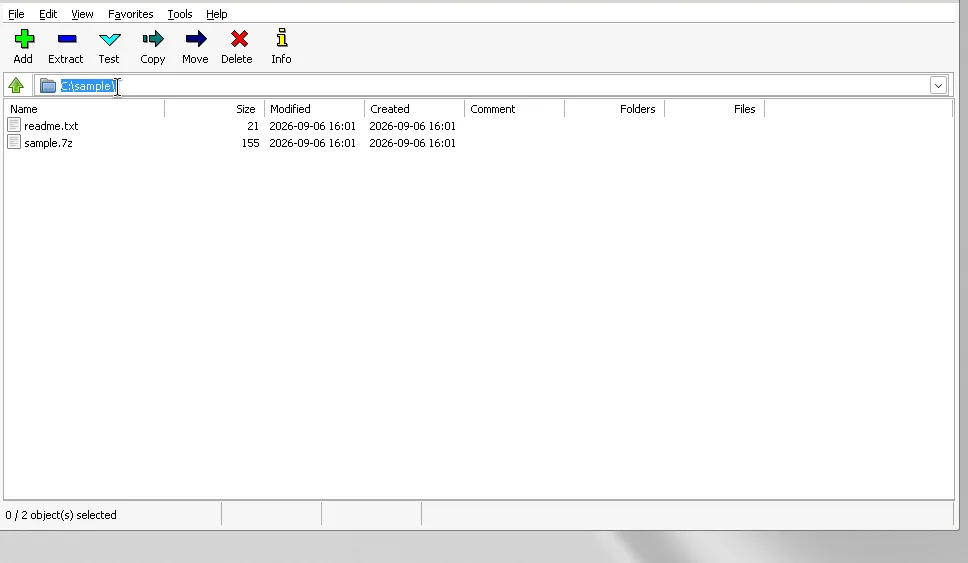
After install, open File Manager once, extract a small trusted archive, and create one sample 7z. Those three clicks prove the local build works without involving cloud accounts. Keep shell integration only if you want Explorer menus.
Related routes on this cluster
Use Windows install when the command fails. Use download-safe when search results look noisy. Use releases when you need the file map. Use vs WinRAR for a licence-aware comparison that does not invent competitor prices. Use first hour right after the installer finishes.
Editorial review dates come from the stamp. Release tags come from the GitHub feed baked into the build. Public sentences still say the current release rather than freezing a screenshot number in body copy.
Update discipline
Prefer one install door per PC. Winget upgrade keeps package identity stable. An exe reinstall from the current official tag replaces the machine-scope build cleanly. Remove abandoned portable folders so shortcuts cannot resurrect an old binary.
If App Installer is missing, install it from Microsoft, reopen Terminal, and retry winget. If your fleet requires MSI, take 7z*-x64.msi from the same official tag as a supporting asset. Other architectures exist on that tag; this cluster maps Windows x64 first.
Operator notes that stay on-site
Keep install commands and file names visible on this cluster so you do not have to bounce to a random mirror to finish the job. Official exits still open in a new tab when you want the vendor pages. Internal guides stay in the same tab.
When something fails, re-check App Installer, the package id 7zip.7zip, and the 7z*-x64.exe name pattern before you change unrelated Windows settings. That order solves most first-day confusion without downloading a second questionable copy.
Troubleshooting style reminder
If a command fails, read the error once, confirm App Installer, then retry winget with id 7zip.7zip. If a browser download looks wrong, check that the filename matches 7z*-x64.exe before you run it. If File Manager is missing from Start, search for 7zFM or reopen the official installer instead of grabbing a random portable from a file host.
Keep this cluster bookmarked for the next machine you set up. The guides hub lists install, compare, migrate, and daily-use topics without sending you through an ad maze. Official vendor pages remain one new-tab click away when you want primary documentation.
Day-two archive habits
After the installer settles, extract one trusted archive and create one sample 7z so Add and Extract are proven on this machine. Keep personal documents out of those first tests. Prefer the same winget id or official x64 exe door for the next update so shortcuts do not point at abandoned portable folders.
When search results offer a renamed helper, return to 7-zip.org or GitHub Releases instead. When a colleague asks for WinRAR pricing, send them to win-rar.com rather than inventing a number here. When File Manager feels unfamiliar, open the first-run and extract guides before changing shell defaults.
Final verification sentence: keep Windows x64 on the documented door, verify the filename pattern, and open File Manager once after install before you change shell defaults. Keep personal documents out of the first unpack test on purpose.